

From report to record
In this video, you see how Wellcom Connect puts each heading of your report into the right field of your record.
Watch the explainer video (in Dutch)Guides, explainer videos and answers for everyone who works with Wellcom.
A tour of the portal: speech-driven reporting with ScribeChat, the basics of the portal and Wellcom Connect.
Video10:49 22 chapters
New
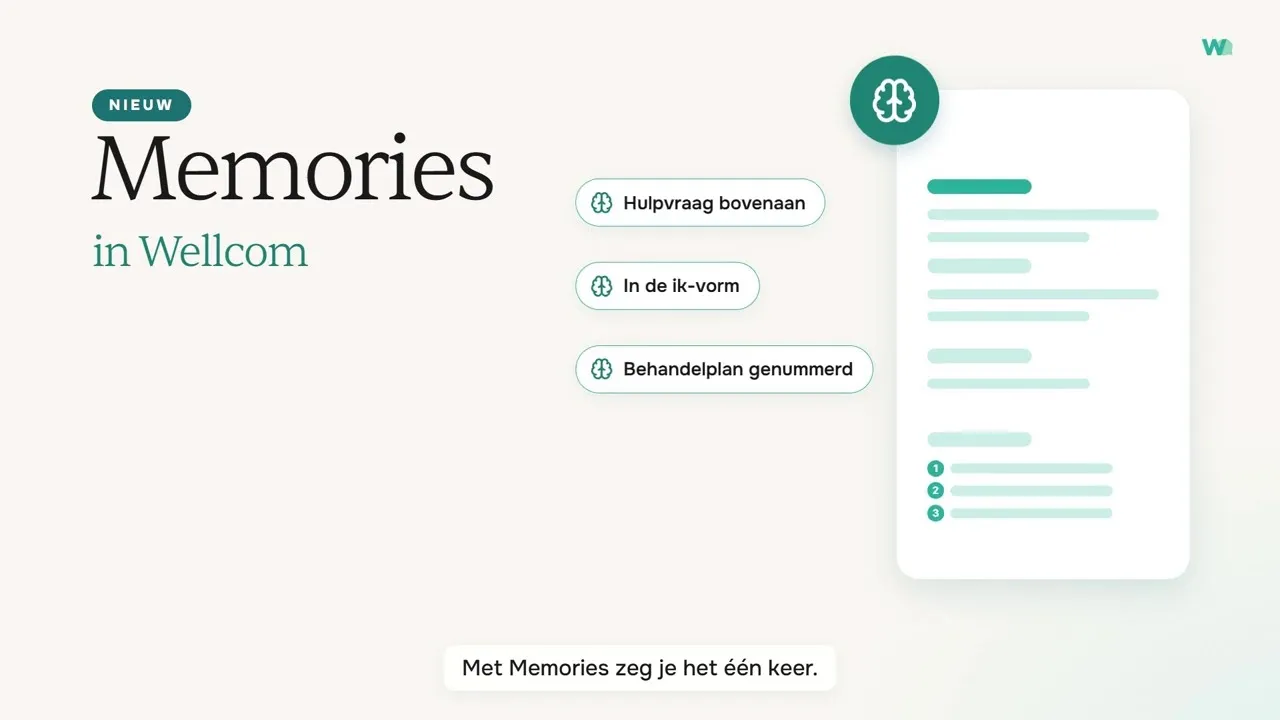
Do you keep adjusting your report in the same way? Save that adjustment in your memories. From then on, Wellcom applies your fixed wishes to every report of that type, just for you.
Guides, videos and questions for each area of the portal.
Choose what fits your work. You then see the articles that matter most to you.
The first steps: from what Wellcom is to your first conversation with ScribeChat.
Short explanations for each area, to watch whenever it suits you.
Soon you can click through the portal yourself here. We are building these explanations now.
In this video, you see how Wellcom Connect puts each heading of your report into the right field of your record.
Watch the explainer video (in Dutch)In this video, you see how TolkChat translates: you speak Dutch, your patient speaks their own language, and you take turns or just keep talking.
Watch the explainer video (in Dutch)Here you'll soon see the difference between asking WellcomChat a question and the Rapportage assistent (report assistant), which helps you step by step with a report, referral or letter.
A selection of the questions we get about Wellcom.
All questionsIs your question not listed? Submit a ticket
Then Systeemaudio delen (Share system audio) is almost always turned off. In a video call, the other person's voice comes from your computer. Wellcom only hears it if you share your screen with system audio.
On a Mac, you give your browser permission to share your screen once. Safari can't record your computer's sound directly, so use Google Chrome or Microsoft Edge. Read more in Een online consult opnemen (in Dutch). You can also watch it in the video Online consulten, from the chapter about the sharing window.
Memories are your fixed wishes for a report type. Do you keep adjusting your report in the same way, for example with the request for help at the top or with Beknopter (More concise)? Then, after that adjustment, click the brain (Opslaan in memories, Save in memories) and click Opslaan (Save). From then on, Wellcom applies your wishes every next time you make that report type, also in Wellcom Connect.
Your memories are only for you, and the template itself doesn't change. Don't put patient data in them, and always read through your report.
How it works is explained in Memories: je vaste wensen bij elk verslag (in Dutch). You can also watch the video Memories in Wellcom.
Wellcom uses a speech model that is tuned to conversations in healthcare, including medical terms. Even so, speech recognition is never flawless. So always check your report before you put it into your EHR: you remain responsible for what goes into the record.
Does the transcription often miss words or passages? That's usually down to the microphone or the distance from the speaker. Read The transcription is wrong or has gaps (in Dutch).
Create a ticket using the ticket form. There you choose how urgent your question is.
Is Wellcom not working for your organisation or for several colleagues, or do you suspect a data breach? Then choose the urgency Critical. The support team is notified of it immediately.
You can also email support@wellcom-health.nl.
Do not put patient data in your ticket or in an attachment. If needed, use an internal number.
Are you an administrator for your organisation? Then you manage this in Mijn Organisatie (my organisation) in the portal menu.
Your colleagues log in with their email address and password, or with Login met Microsoft or Login met Google (log in with Microsoft or Google). Read Adding and removing employees (in Dutch).
Read the full explanation in From conversation to report.
All questionsIs your question not listed? Submit a ticket
Is something not working as usual? The status page shows whether there is an outage or maintenance.
Submit a ticket. You get a ticket number by email straight away and we keep you updated.
Never include patient data, not even in a screenshot.