With ScribeChat, you record a conversation and then turn it into a report. Here you can read how to start a conversation, what to do with the transcript and how your report gets into your EHR (electronic health record).
ScribeChat
In the portal this is called: ScribeChat
The Wellcom portal is in Dutch. Buttons and menus are shown in bold in Dutch, with the English meaning in brackets.

Most reported
Is Wellcom not hearing the other person in an online consultation?
Usually Systeemaudio delen (Share system audio) is turned off. The video shows how to set it up and how to check that Wellcom hears your patient.
Start here
The guides in order. Start at the top if you are new.
-
Recording a conversation with ScribeChat
How to start a conversation in ScribeChat, in the consulting room or online, follow the live transcript and then go to your report.
-
From conversation to report
After your conversation, choose the report you want, let Wellcom create it, then read it through and edit it. This is how the report screen works.
-
Getting your report into your EHR
Copy your report into the record, download it as a PDF or Word file, or send it directly if your EHR is linked to Wellcom.
More articles are available in Dutch. All about ScribeChat in Dutch
How it works
Interactive explanations you can click through yourself.
From conversation to report
Here you'll soon see, in three steps, how a conversation in ScribeChat becomes a transcript, and then a report.
Watch the explainer video (in Dutch)Explainer videos
See how ScribeChat works.

Frequently asked questions
During an online consultation, Wellcom only records my own voice. What now?
Then Systeemaudio delen (Share system audio) is almost always turned off. In a video call, the other person's voice comes from your computer. Wellcom only hears it if you share your screen with system audio.
- During the conversation: click the red icon in the ScribeChat toolbar. Not started yet? Then click Online.
- In the sharing window, choose Volledig scherm (Entire Screen) and turn on Systeemaudio delen (Share system audio).
- Click your screen and then Delen (Share).
- Ask the other person to say something and check that it appears in the transcript.
On a Mac, you give your browser permission to share your screen once. Safari can't record your computer's sound directly, so use Google Chrome or Microsoft Edge. Read more in Een online consult opnemen (in Dutch). You can also watch it in the video Online consulten, from the chapter about the sharing window.
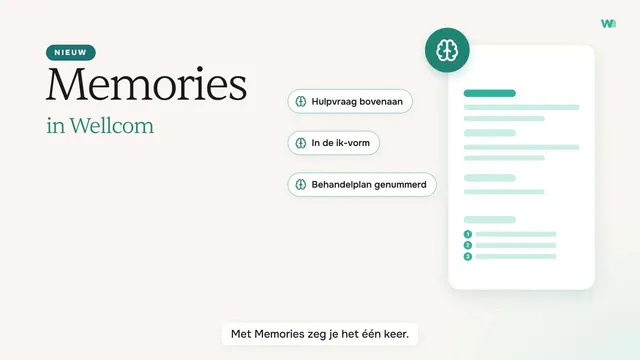
What are Memories in Wellcom?
Memories are your fixed wishes for a report type. Do you keep adjusting your report in the same way, for example with the request for help at the top or with Beknopter (More concise)? Then, after that adjustment, click the brain (Opslaan in memories, Save in memories) and click Opslaan (Save). From then on, Wellcom applies your wishes every next time you make that report type, also in Wellcom Connect.
Your memories are only for you, and the template itself doesn't change. Don't put patient data in them, and always read through your report.
How it works is explained in Memories: je vaste wensen bij elk verslag (in Dutch). You can also watch the video Memories in Wellcom.
How accurate is the speech recognition?
Wellcom uses a speech model that is tuned to conversations in healthcare, including medical terms. Even so, speech recognition is never flawless. So always check your report before you put it into your EHR: you remain responsible for what goes into the record.
Does the transcription often miss words or passages? That's usually down to the microphone or the distance from the speaker. Read The transcription is wrong or has gaps (in Dutch).
How does it work, from conversation to report?
- On the Startpagina (home page), choose the Transcriberen (transcribe) tab and click Start Transcriberen (Start transcribing).
- Have your conversation. The text appears while you talk.
- Click Naar verslag (Go to report) when the conversation is finished.
- Under Kies verslaglegging (Choose report type), choose the type of report and click Verslag maken (create report).
- Check the report, edit it where needed and put it into your EHR.
Read the full explanation in From conversation to report.
Can I record an online consultation via Teams or Zoom?
Yes. In ScribeChat, click Online and share your screen with Systeemaudio delen (Share system audio) turned on. That works with Teams, Zoom, Google Meet and other calling apps, in Google Chrome and Microsoft Edge. Without system audio, Wellcom only hears you and not your patient.
Using Teams? Then the Teams meeting bot can also join your meeting as a note-taker, if it's part of your subscription.
The steps are in Een online consult opnemen (in Dutch). You can also watch them in the video Online consulten.
Still stuck?
Submit a ticket. You get a ticket number by email straight away and we keep you updated.
Never include patient data, not even in a screenshot.